
Installation Guide
Get up and running in minutes. Follow our premium step-by-step tutorials to set up Catchon TV on any device.
Fire TV Stick / Amazon Firestick
Install Downloader App
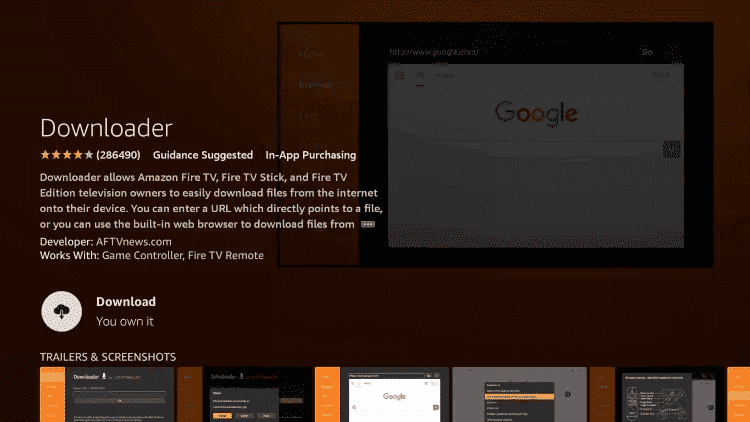
Go to your device's home screen, select Search, and type "Downloader". Select the app and click Download/Get.
Enable Unknown Sources
Go to Settings > My Fire TV > Developer Options. Enable "Install unknown apps" and set it to ON for the Downloader app.
Download IPTV Smarters
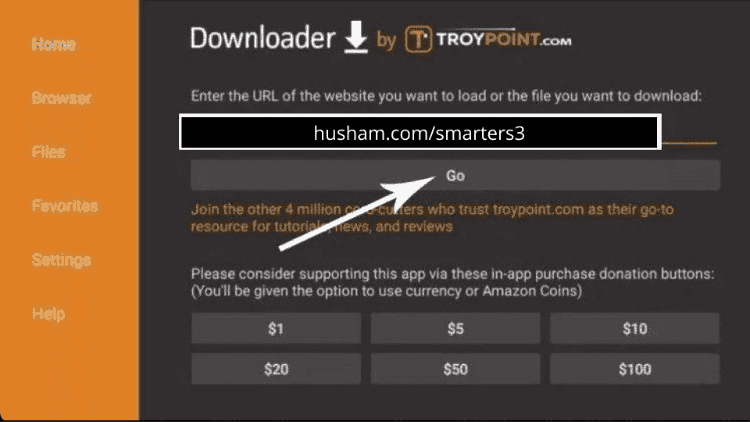
Launch Downloader and type the following URL: https://www.iptvsmarters.com/smarters.apk. Click Go and then click Install when prompted.
Log In & Start Streaming
Open IPTV Smarters Pro, select "Login with Xtream Codes API" and enter the Username, Password, and URL sent to your email.
Android & iOS (Mobile/Tablet)
Download the App
Search for "IPTV Smarters Pro" (Android) or "Smarters Player Lite" (iOS) on the Google Play Store or App Store.
Select Xtream API
Open the app and choose the "Login with Xtream Codes API" option.
Enter Your Details
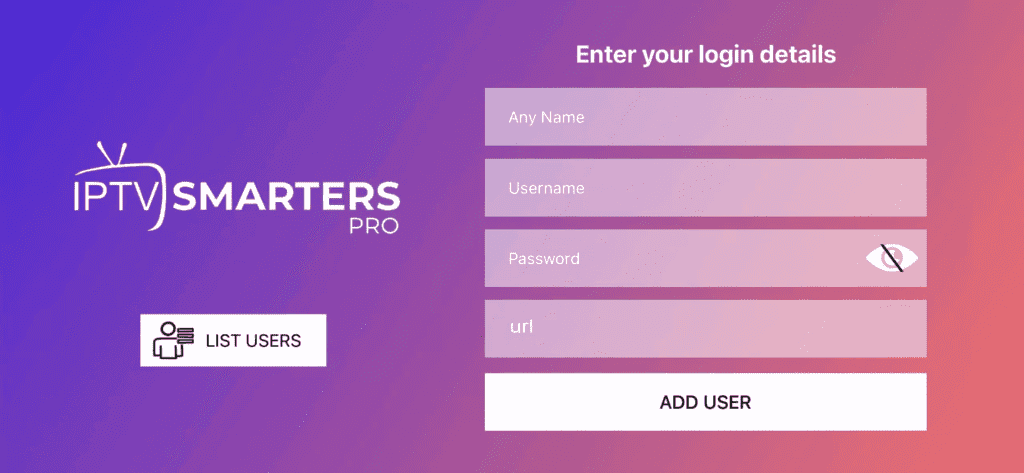
Input your subscription credentials. After clicking "Add User", wait a moment for the content to sync.
Smart TV (Samsung & LG)
Open Content Store
Go to the Samsung Smart Hub or LG Content Store and search for "IPTV Smarters Pro".
Install & Run
Once installed, open the application and select "Login with Xtream Codes API".
Login
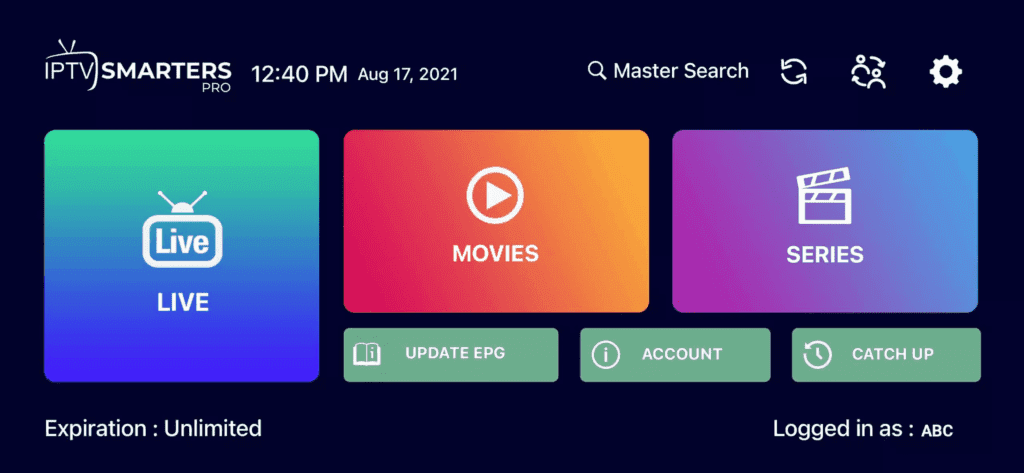
Enter the credentials provided after your purchase to enjoy live TV in 4K.
Windows PC / Laptop
Download Windows App
Download the official IPTV Smarters Pro executable for Windows from our resource center.
Installation
Run the installer and launch the app from your desktop. Select Xtream Codes API login.
Add Subscription
Enter your unique Username and Password. Click "Add User" to start watching immediately.
KODI Setup (PVR IPTV Simple Client)
Navigate to TV Options
Launch Kodi and select "TV" from the left-hand side menu.
Install PVR Client
Select "Enter Add-on Browser" and find "PVR IPTV Simple Client" in the list.
Configure M3U URL
Click "Configure", go to the General tab, and paste the M3U URL we sent to your email.
Load & Play
Wait for the channels to load. You can now access all premium content directly from the Kodi main menu.
MAG Box (250, 254, 256 etc.)
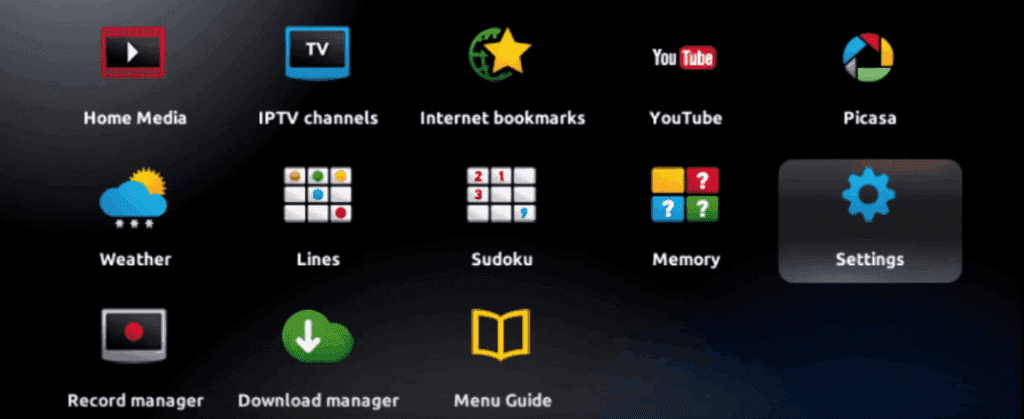
Enter System Settings
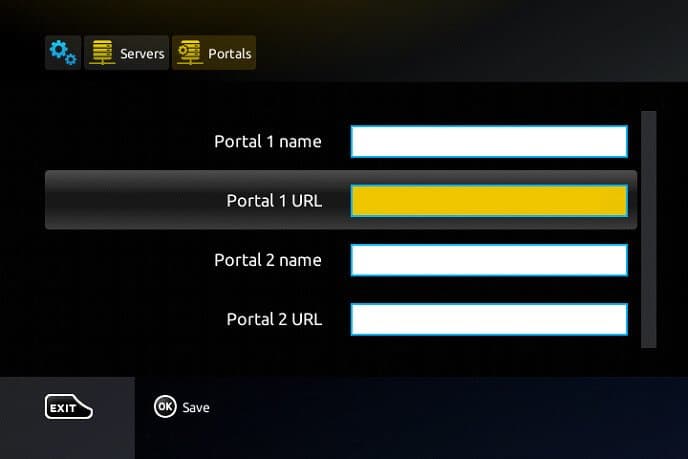
Go to Settings > System Settings > Servers > Portals.
Set Portal Details
Enter "Catchon TV" as the Portal Name and paste the Portal URL provided in your email.
Restart & Connect
Click OK to save, then restart your device. Your MAC address must be provided to us for activation.